

Join & sign in
This page covers everything about getting into your partner portal: applying to a program, activating your account, signing in, and the short setup you do the first time.
Applying to a program
Some programs let you apply through a public application page. You fill in a short form (your company, your contact details, and anything else the program asks), then submit. You’ll see a confirmation with a reference, and the program reviews your application. If you’re accepted, you get an invitation email to set up your account.
If your program invited you directly, you can skip straight to activation below.
Activating your account
When a program adds you, you receive an invitation email. Open it and follow the link to activate. You choose how you’ll sign in from then on:
- Sign in with Google, if your work account is on Google.
- Set an email and password.
Once you’ve done that, you’re taken into the portal, straight to anything that needs your attention first (an agreement to sign, or the short setup below).
Activation links don’t last forever. If yours has expired or was already used, request a fresh one from the sign-in page (there’s a “request activation link” option). Enter your email and you’ll get a new link if your account is registered and not yet activated.
Signing in
Once you’re activated, sign in with whichever method you set up. Depending on your program you may have up to three options:
- Google: one click, if you activated with Google.
- A one-time link: enter your email and you’ll get a sign-in link. No password to remember, and it works across devices.
- Email and password: if you set a password.
If a sign-in link expires before you use it, just request another. If a password isn’t working, use the one-time link instead or reset your password.
Your first-time setup
The first time you sign in, the portal walks you through a short setup before you reach your dashboard. If your program needs you to sign an agreement first, you’ll do that before anything else (see Sign agreements).
The setup has up to four steps, and a progress bar shows how far along you are. It only shows the steps that apply to you, so you may see all four or just two:
- 1Welcome and companyA welcome from your program, sometimes with a personal message from them. If you manage your organization's details, you also confirm your company profile here. It's prefilled from your application, so you only correct what has changed.
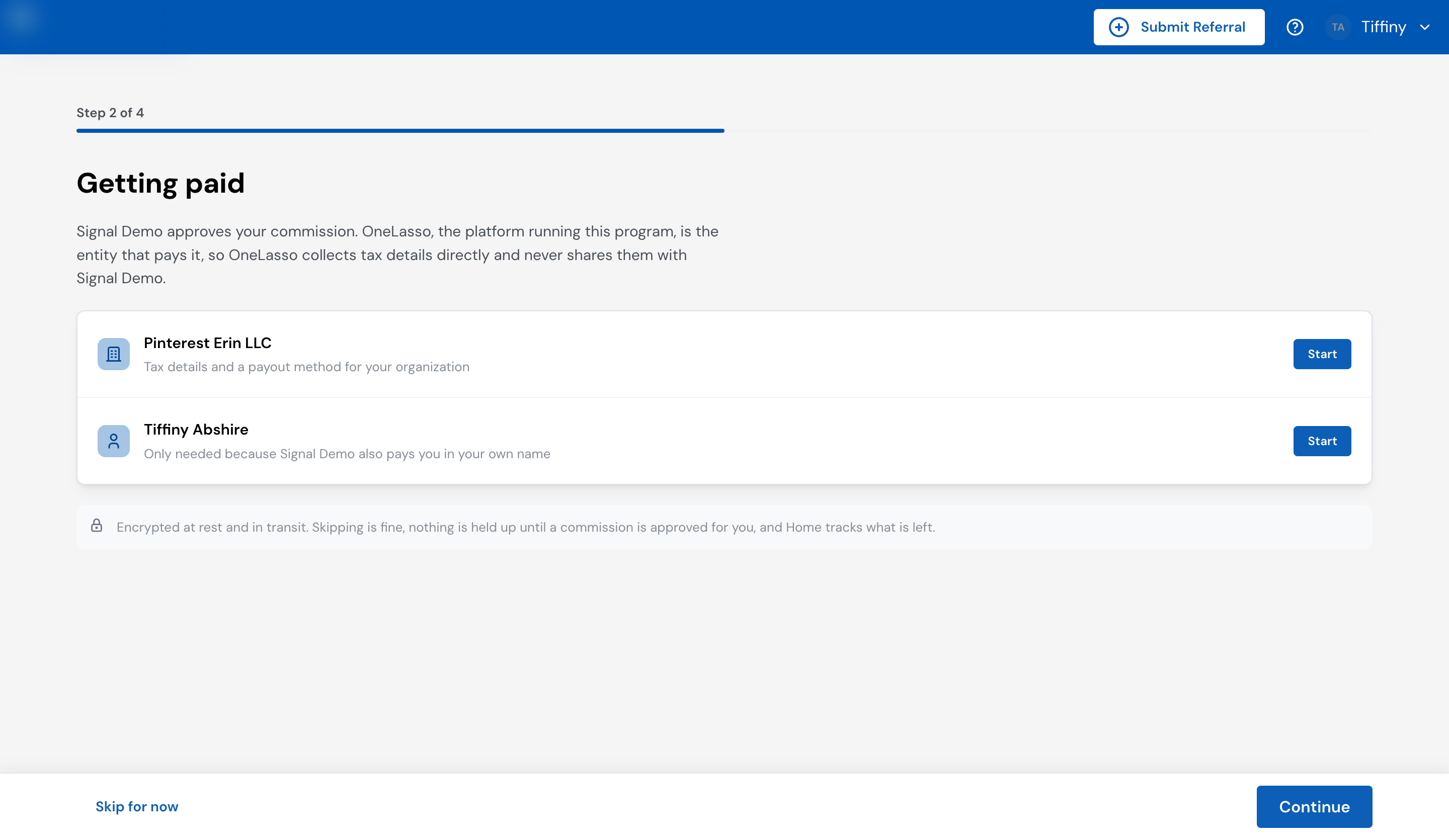
- 2Getting paidYour tax details and a payout method, for your organization, for yourself, or both, depending on how your program pays you. You can skip this for now: nothing is held up until a commission is approved for you, and your dashboard keeps track of what's left.
- 3Communication preferencesChoose which updates you get by email and in Slack. See Your profile for what each option covers.
- 4Bring in your teamIf you can manage your team, invite colleagues so they can use the portal too. You can always do this later.
When you finish, you land on your dashboard. Anything you skipped stays on your Home checklist until it’s done.
Your Home checklist keeps a reminder to add your tax and payout details. Once one of your referrals is accepted, the reminder is marked Coming up. If a commission has already been approved and is waiting on you, it turns red, shows the amount waiting, and is marked Payout on hold until you finish. See Get paid.
Now that you’re in, here’s what each part of the portal is for.