

Connect your AI assistant (MCP)
Lasso connects to AI assistants over MCP (the Model Context Protocol), so you can link your Lasso account to an assistant like Claude or ChatGPT and work with your partnership program in plain language. Instead of clicking through the app, you just ask: about partners, referrals, commissions, and payouts, and you can submit referrals too.
MCP (the Model Context Protocol) is an open standard that lets AI assistants securely connect to tools and data. Any assistant that supports MCP can connect to Lasso through a single secure connection.
Before you start
You’ll need:
- A Lasso account, as an account team member, a partner, or both.
- An AI assistant that supports MCP, for example Claude Desktop, Claude.ai, Claude Code, or ChatGPT (in developer mode).
- The Lasso MCP address:
https://api.lassotech.com/api/v1/mcpOne connection covers everything you have access to: every account and every partner portal tied to your Lasso login.
It acts as you, with your permissions
The connection works with your own Lasso sign-in and respects your exact role. Your assistant can only see and do what you can do in Lasso, never more. Sign-in is secure and standard (OAuth), with no API keys to copy, store, or rotate (Lasso API keys don’t work here). You approve the connection through a normal Lasso sign-in, so you stay in control and can revoke access at any time.
Connect Claude.ai or another assistant
For assistants that connect by address, add a new MCP connector and paste the Lasso address. The screens below are from Claude; other MCP clients follow the same flow.
-
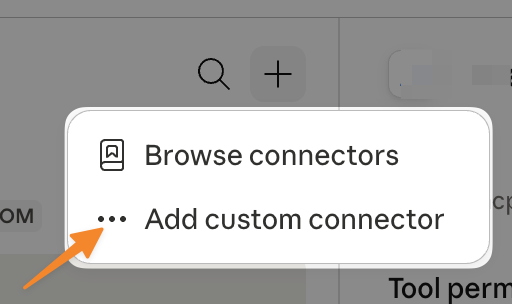
In your assistant, open the connector menu and choose Add custom connector.
-
Give it a name (for example,
Lasso) and paste the Lasso MCP address. Leave the OAuth fields blank, then click Add.https://api.lassotech.com/api/v1/mcp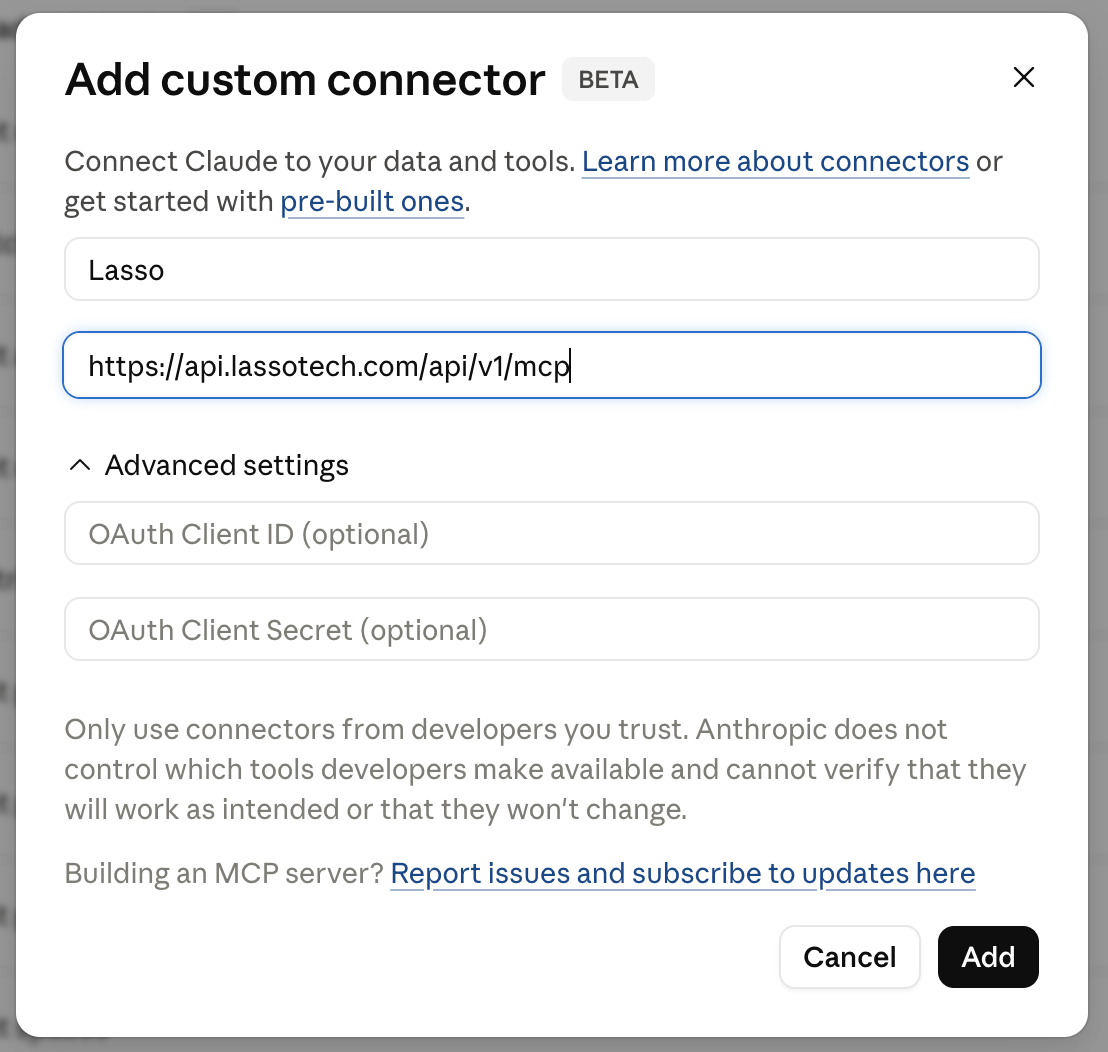
-
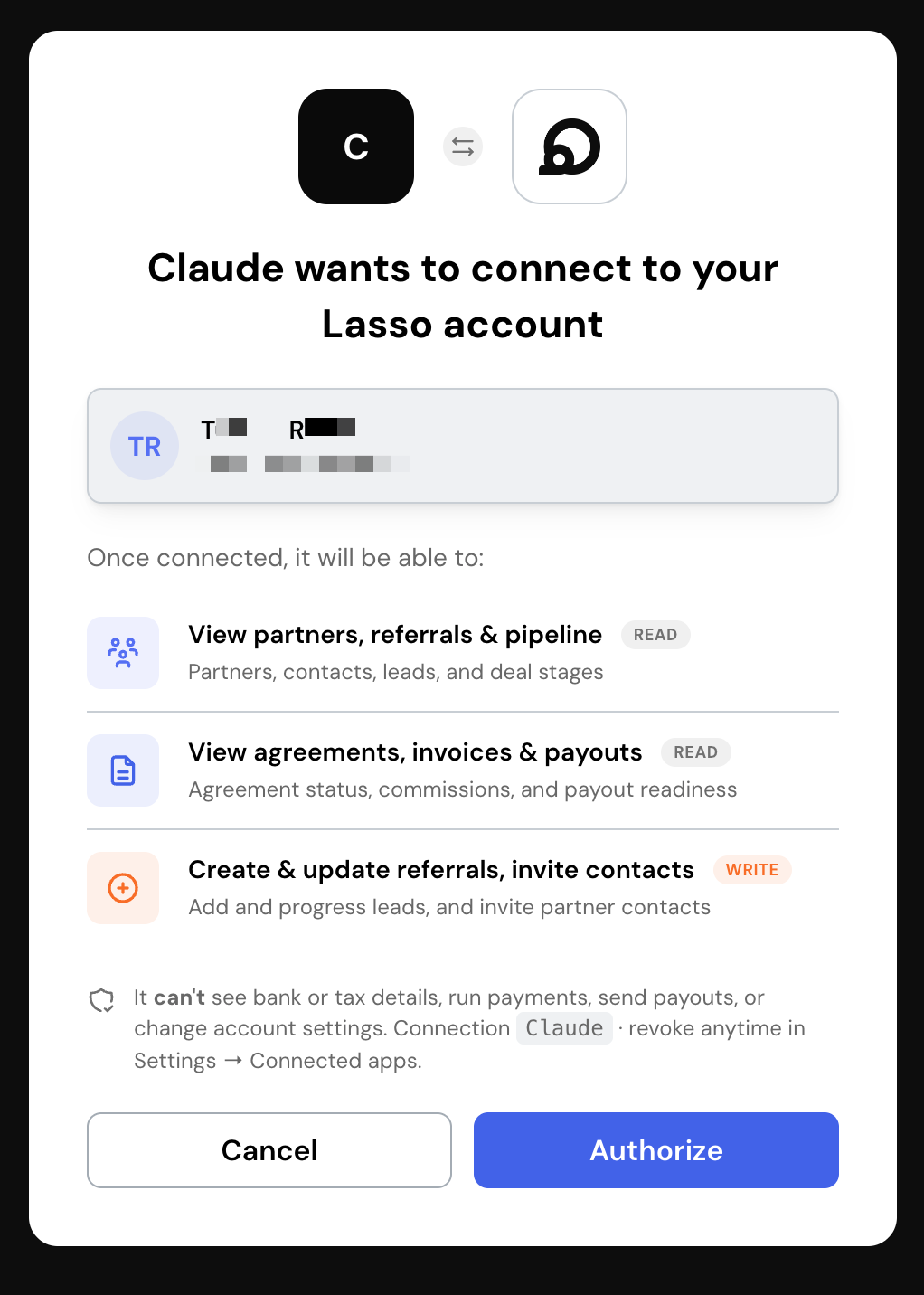
Your assistant opens a Lasso sign-in and approval screen. Review the access you’re granting and click Authorize.
-
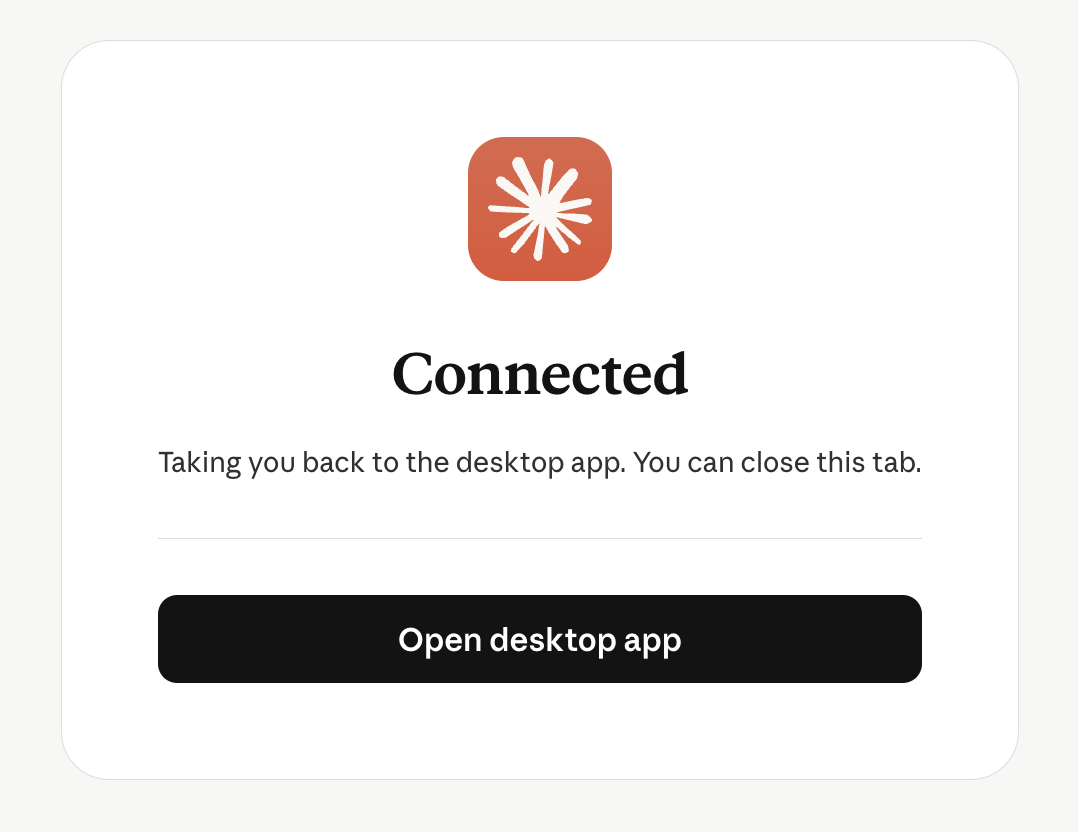
You’re returned to your assistant with the connection live.
-
Your assistant lists the Lasso tools and lets you set when it can use them. Read-only tools can run freely; tools that change data can be set to ask for approval first.
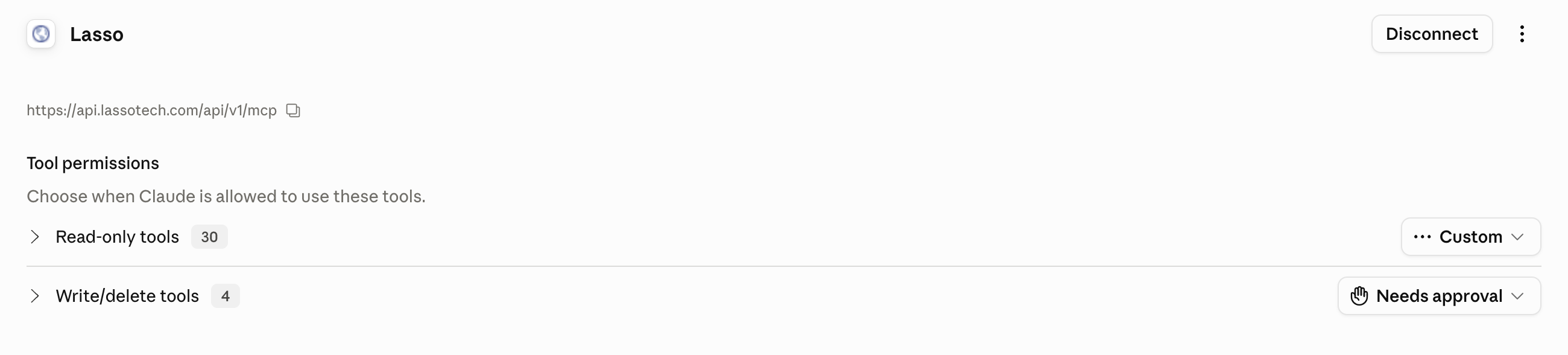
If your Lasso login has access to several accounts, tell your assistant which one to use (for example, “use my Acme account”) and it will work in that account. You can switch accounts in the same conversation.
What you can do once connected
The connection gives your assistant a set of capabilities that match how you use Lasso. You’ll see the account-side capabilities if you run a partnership program, and the partner-side capabilities if you’re a partner, or both, if your login covers both.
If you run a partnership program:
- Find and understand your partners: search your roster, look up a partner’s status, tier, health, and contacts, and pull up a leaderboard of your top partners.
- Track referrals: see status, amounts, contacts, and who gets credit; update a referral’s status; submit a referral on a partner’s behalf. Marking a referral closed won starts its rewards and invoices.
- Invite partner contacts: add a contact to a partner, which emails them a portal invitation.
- Stay on top of money: review commissions owed and paid, payments to partners, and the revenue behind those commissions. You can also load settled revenue in bulk, which changes what commissions are owed.
- Adjust rewards on a referral: add a one-off bonus, SPIFF, or revenue share to a single referral, or remove one that hasn’t been paid yet.
- Create one-off payments in bulk: raise one-off commission invoices for many partners or partner contacts at once, previewing the whole batch before anything is created.
- Prepare a payout: draft a payout batch from invoices that are ready to pay, add or remove invoices on the draft, and check what would block it. The draft waits in Lasso for someone on your team to review, approve, and process, and the invoices on it are held for that run until it is processed or changed.
- Get the headline numbers: leads, revenue, commissions, and active partners for a quick read on the program.
If you’re a partner:
- See your activity: your open and past referrals, your payments, and your dashboard numbers.
- Check your money: what you’ve been paid this year and lifetime, and whether you’re set up to get paid.
- Review your agreements: which agreements you have and their signature status.
- Submit referrals: submit a referral on your own behalf.
Example things to ask: “How much do we owe partners right now?” · “Show me our top partners this quarter.” · “What’s the status of the referral from Acme?” · “Add a $500 bonus to the Acme referral.” · “Draft a payout for everything ready to pay.” · “What referrals do I have open?”
Some actions, like updating a referral’s status, adding a reward, creating one-off invoices (which join the next payout), inviting a contact, loading revenue, or drafting a payout, change data in Lasso. A good MCP client shows you what it’s about to do and asks you to confirm before anything that isn’t just reading. Each action also needs the matching permission on your Lasso role. The connection can’t see bank or tax details, approve or run payments, send payouts, or change account settings: a drafted payout still needs a person on your team to approve and process it in Lasso.
Manage access
You can see which assistants are connected to your Lasso account, and remove any of them, from My Settings → Connected apps in Lasso (open it from your user menu). Revoking an assistant takes effect immediately; the connection stops working until you reconnect and approve it again. Revoking is per person, so removing your connection doesn’t affect anyone else’s.
Troubleshooting
The connection stopped working. If a connection ever needs to be re-approved, reconnect from your assistant and sign in to Lasso again. If you revoked access, reconnect and approve before the tools become available. For anything you can’t resolve, contact your account manager.