

Use Lasso in Slack
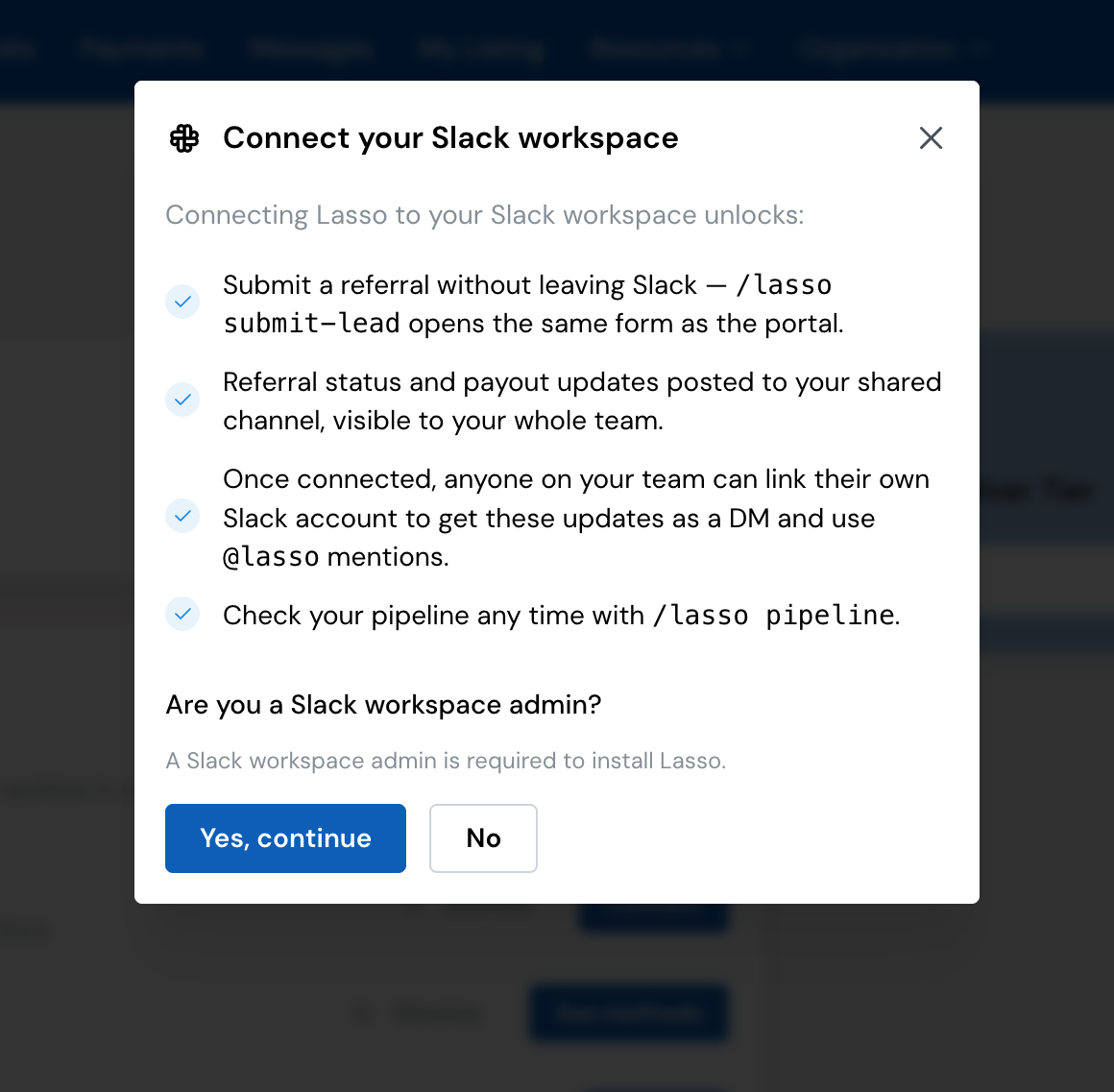
If your team works in Slack, you can send referrals, check your pipeline, and get referral and payout updates without opening the portal. There are two parts to setting it up: your organization connects its Slack workspace once, then each person links their own Slack account.
What you can do
- Submit a referral with
/lasso submit-lead. It opens the same form as the portal. - Check your pipeline with
/lasso pipeline. You get a summary of the last 30 days of referrals that only you can see: your whole team’s referrals, or only your own, depending on your role. If you partner with more than one program on Lasso, you pick which one first. - Turn a conversation into a referral by mentioning
@lassoin a message or thread about a prospect. Lasso captures it as a referral for your program to review. If you partner with more than one program, Lasso asks you in the thread which one it’s for. - Get updates about your referrals and payouts, posted to your team’s channel and sent to you as direct messages.
Type /lasso on its own to see the list of commands.
Connect your organization’s workspace
Someone who manages your organization’s details in the portal starts the connection, either from the Home checklist or from the Slack section of your Organization page. Slack only lets a workspace admin approve a new app, so the portal asks whether you’re a Slack workspace admin first. If you aren’t, ask one of your Slack admins to open the same page and choose Connect.
Lasso connects to a single Slack workspace. If your company uses Slack Enterprise Grid, choose one workspace on the Slack approval screen: open the Workspace dropdown and scroll past Your organizations to pick one under Other workspaces.
If your workspace was connected before @lasso mentions were available, your
Organization page shows Reconnect Slack to enable @lasso mentions. Reconnect
once to grant the extra permissions. Nothing else changes.
Link your own Slack account
Once your organization’s workspace is connected, anyone on your team can link their own Slack account, whatever their role. Linking lets Lasso send you direct messages and recognize you when you use /lasso or @lasso.
Choose Link my Slack account from your Home checklist or your Organization page, or type /lasso login in Slack, and sign in to Slack when asked.
Choose where updates go
Referral status and payout updates are posted to your team’s channel, so everyone on your side can see them, as well as being sent to each linked person as a direct message.
Someone who manages your organization’s details can pick the channel under Team channel on your Organization page (or from the Lasso app’s Home tab in Slack). If the channel you want isn’t in the list, invite @Lasso to it in Slack first.
Your program may also set up a shared Slack channel with you, where their team and yours can talk about referrals together.
Choose which messages you get
Each person decides which updates reach them in Slack. By default, Slack follows your email choices: whatever you get by email, you also get in Slack. To choose Slack separately for each kind of update, open Profile, then Notifications. See Your profile.
All the ways to send a referral to your program, including by email and from Slack.