

Your profile
Your profile is where you keep your own details current and choose how your program keeps in touch with you. Open Profile from your portal. It has up to three tabs: Details, Notifications, and Tax & payouts.
Details
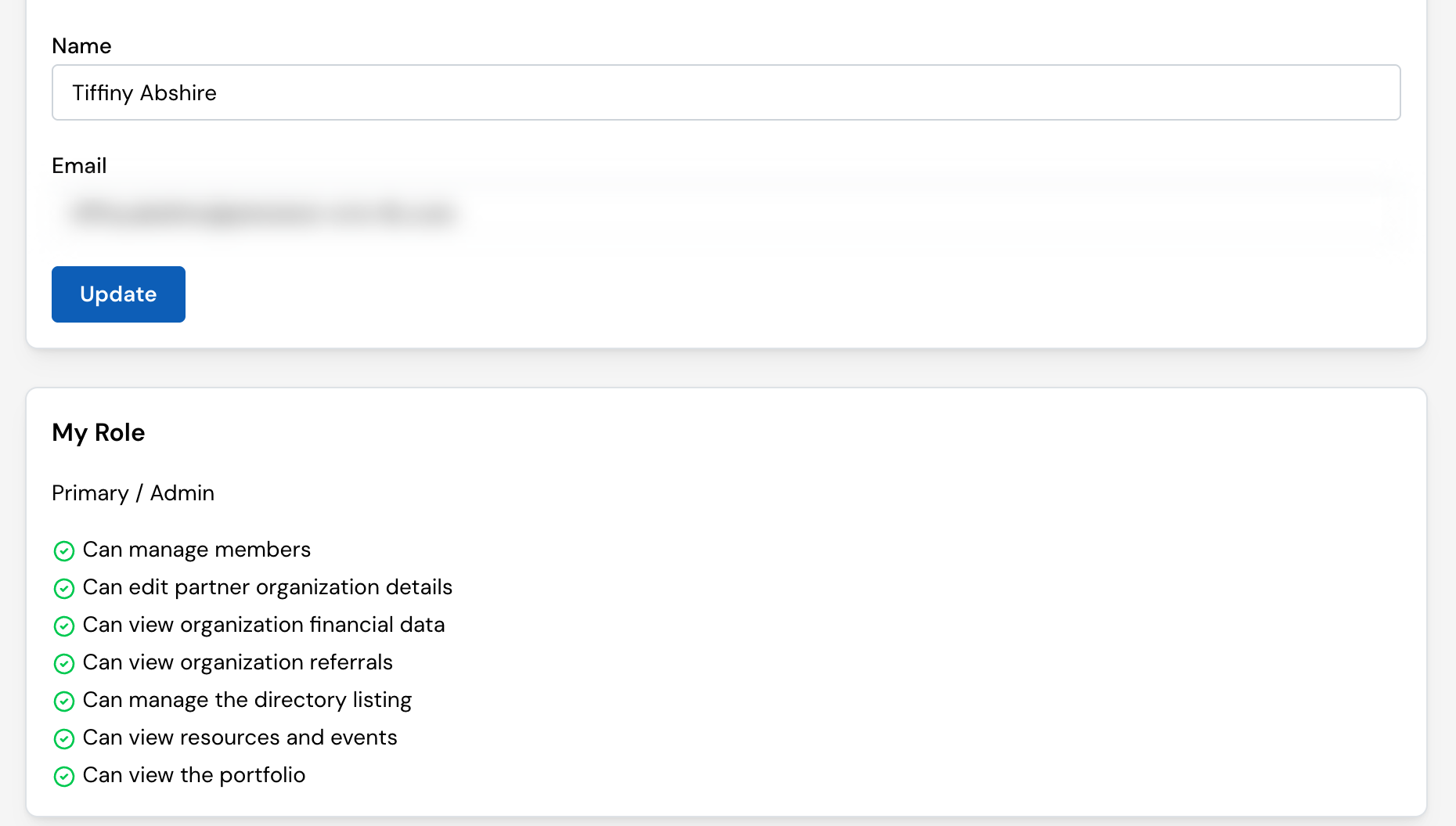
- Your name, email, and photo: how you appear in the portal.
- My Role: the role your team gave you, with a plain list of what it lets you do and what it doesn’t (for example, “Can view organization referrals” or “Cannot manage members”). If you need to do something your role doesn’t allow, ask whoever manages your team to change it. See Your team.
Notifications
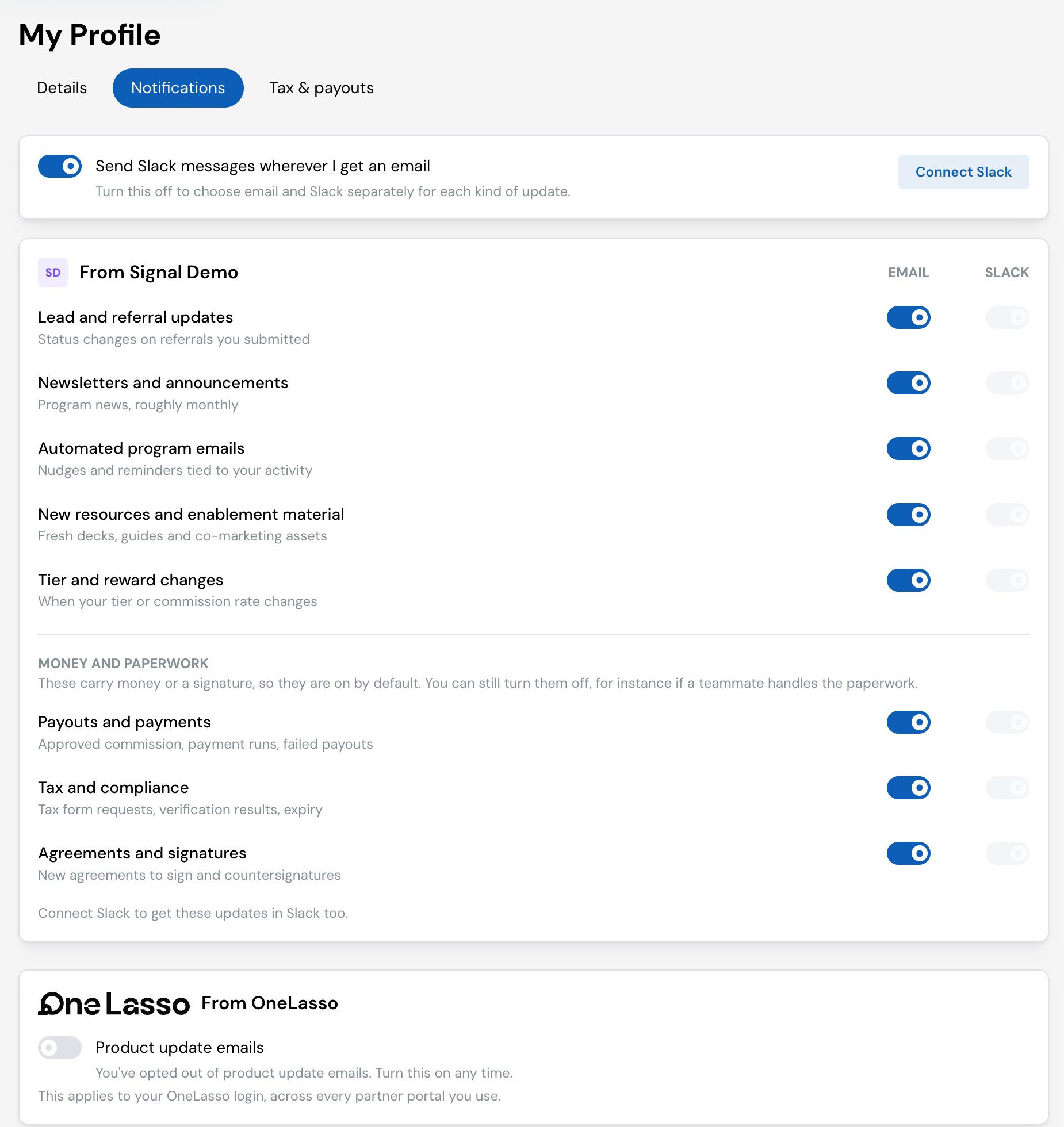
The Notifications tab controls which updates you receive and where. You’ll also see the same options during your first-time setup.
Updates are grouped by kind. Each has an Email and a Slack switch:
| Group | Updates |
|---|---|
| From your program | Lead and referral updates, newsletters and announcements, automated program emails, new resources and enablement material, tier and reward changes |
| Money and paperwork | Payouts and payments, tax and compliance, agreements and signatures |
You only see the updates that apply to your role. For example, if your role can’t see payments, you won’t see a payouts row.
Money and paperwork updates are on by default, because they carry money or need your signature. You can still turn them off, for instance if a teammate handles the paperwork. If you do, your profile shows a reminder naming which ones you won’t get by email, so make sure someone on your team still receives them, or you could miss a payment or a signature request.
Slack follows email by default. With Send Slack messages wherever I get an email turned on, you get a Slack message for every update you get by email. Turn it off to choose email and Slack separately for each kind of update. Slack updates only start once your organization has connected Slack and you’ve linked your own Slack account. See Use Lasso in Slack.
Unsubscribing from an email
Newsletters, announcements, automated program emails, and new-resource emails include an unsubscribe link. It turns off that kind of update only, not everything, and you can turn it back on from the confirmation page or from your Notifications tab. Other emails, such as referral, tier, payout, tax, and agreement updates, don’t have an unsubscribe link: manage those from your Notifications tab instead.
The Notifications tab also has a separate section for updates from Lasso itself (product news), which has nothing to do with your program’s messages.
Tax & payouts
- Your personal tax details: the tax form needed if you’re paid as an individual.
- Your personal payout methods: where your individual earnings go, and which one this program uses.
Some programs pay you personally (for example, an individual referral bonus), some pay your company, and some do both. This tab holds the personal side: your own tax form and payout method, for earnings paid directly to you. If you’re only ever paid through your company, you won’t see this tab. Those details live in your organization’s settings instead.
If your bank account changes, update your payout method before your next payment so nothing is delayed. Changing a payout method asks for a one-time code sent to your email. See Get paid.
Set up your payout method and tax form so your earnings can reach you.